The Android 17 Beta is finally rolling out, and many Pixel users in India are searching for how to install Android 17 Beta safely. If you typed “how to install Android 17 beta,” “Android 17 beta download,” or “How to Install Android 17 Beta – Step-by-Step Process,” you’re in the right place.
This guide explains the official and safest method to install Android 17 Beta on your Pixel device — in simple language, without technical confusion.
In this guide, we will clearly explain how to install Android 17 Beta step by step without risking your data.
Let’s make it easy.
First: Should You Install Android 17 Beta?
Before jumping into installation steps, ask yourself one honest question:
Many Pixel users are searching how to install Android 17 Beta safely using the official OTA method.
Is this your primary phone?
Android 17 Beta is a testing version. That means:
- Some apps may crash
- Banking or UPI apps might show errors
- Battery backup may fluctuate
- Minor bugs are possible
If your Pixel is your only work phone, you may want to wait for the stable version.
But if you love trying new features early, Android 17 Beta is exciting.
You can also explore the top Android 17 Beta features before updating.
Who Can Install Android 17 Beta?
Currently, Android 17 Beta install Pixel support includes:
- Pixel 8 series
- Pixel 7 series
- Pixel 6 series
- Pixel Fold
- Pixel Tablet
If your device appears on the Android Beta Program page, you can proceed.
Before proceeding, check the full Android 17 Beta eligible devices list.
How to Install Android 17 Beta (Official OTA Method)
This is the safest way to install Android 17 Beta. No laptop required. You can install through mobile only and please check out all step then go ahead.
Step 1: Open Android Beta Program Website
Go to:
https://www.google.com/android/beta
Login using the same Google account that is on your Pixel device.
Step 2: Enroll Your Pixel Device
Scroll down. You will see your eligible device.
Click:
👉 Enroll
Accept the terms and confirm.
That’s it — your phone is now registered for Android 17 Beta OTA update.
Step 3: Check for Android 17 Beta Update
On your Pixel:
Settings
→ System
→ Software Update
→ Check for update
Within a few minutes (sometimes up to 30 minutes), you should see:
Android 17 Beta update available
Click Download and Install.
Android 17 Beta Download Size (India)
The Android 17 Beta download usually ranges between:
1GB to 2GB
Make sure:
✔ You are on Wi-Fi
✔ Battery is above 50%
✔ Storage space is available
Installation may take 15–30 minutes.
Your phone may restart once or twice. That is normal. Do not rush or panic be patient.
Important Things Indian Users Should Check Before Updating
This is very important. Please read this and then take actions accordingly.
Many Indian users depend on:
- Google Pay
- PhonePe
- Paytm
- Banking apps
- Office apps
Sometimes beta versions affect banking apps.
Before installing Android 17 Beta:
✔ Backup your important data
✔ Sync contacts and photos
✔ Ensure OTP SMS works properly
✔ Check if your banking apps support beta
It’s better to be safe than regret later.
Alternative Method: Install Android 17 Beta Manually (Advanced Users Only)
There is also a manual Android 17 Beta install method using ADB and flashing tools.
But honestly?
Most users should avoid this.
Manual flashing can:
- Erase your data
- Brick your device
- Cause serious issues
For normal users, OTA enrollment is the best method.
Common Problems After Installing Android 17 Beta
Some users report:
- Slight heating
- Battery drain
- Delayed notifications
- App compatibility issues
But Google usually fixes these in next beta updates.
Remember: Beta means testing phase.
How to Exit Android 17 Beta
If you regret installing Android 17 Beta:
- Visit Android Beta Program page
- Click Opt Out
- You will receive a stable downgrade update
⚠ Important: Downgrading may wipe your data.
Always backup before opting out.
Is Android 17 Beta Worth Installing?
Here’s my honest opinion.
If you:
✔ Love new features
✔ Don’t mind small bugs
✔ Have a secondary device
Then yes — try it.
If you:
❌ Depend on your phone for business
❌ Use UPI daily
❌ Can’t afford app crashes
Then wait for stable release.
Sometimes patience is smarter than excitement.
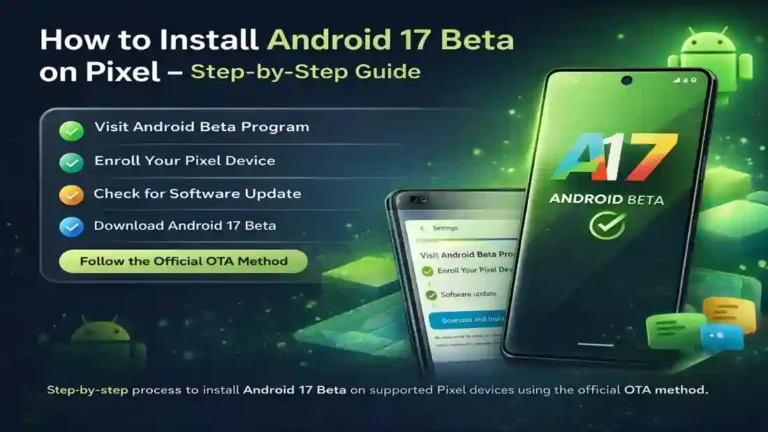
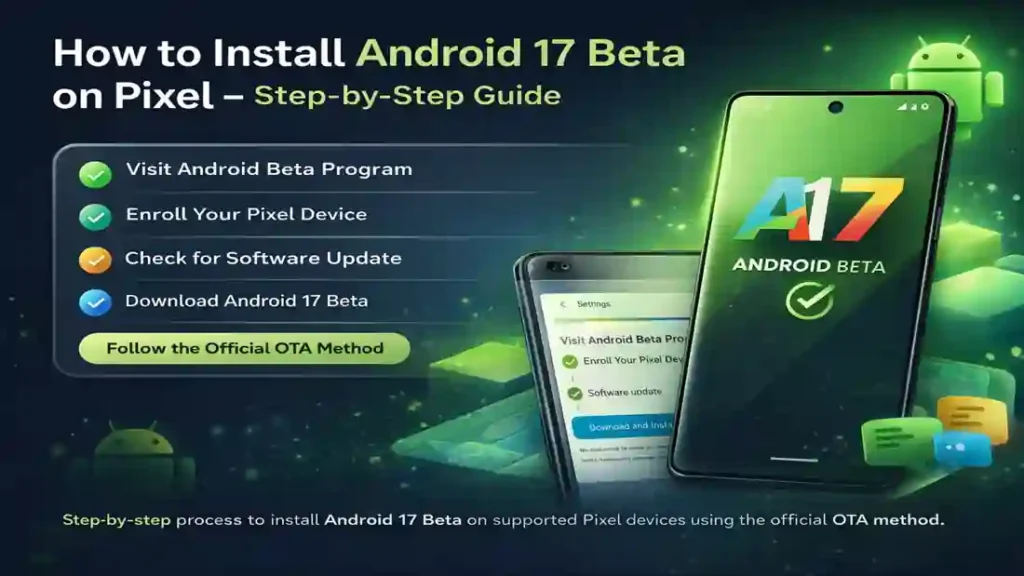
Quick Summary – Android 17 Beta Install Steps
- Visit Android Beta Program
- Enroll your Pixel
- Go to Settings → System → Software Update
- Download Android 17 Beta OTA
- Install and restart
If you follow this guide carefully, installing Android 17 Beta becomes simple and safe.
Simple. Safe. Official.
How to install Android 17 Beta on Pixel?
Enroll your device in the official Android Beta Program and download the OTA update from system settings.
Is Android 17 Beta available in India?
Yes, eligible Pixel devices in India can install Android 17 Beta.
Will installing Android 17 Beta delete my data?
OTA updates usually don’t erase data, but backup is strongly recommended.
How long does Android 17 Beta installation take?
Usually 15–30 minutes depending on internet speed and device model.
Can I uninstall Android 17 Beta?
Yes, you can opt out from the beta program, but data may be erased during downgrade.